

Updating Your Payment Method for Game of Innings
This guide provides clear, step-by-step instructions on how to update your payment method on file for Game of Innings, ensuring your in-game purchases and subscriptions continue uninterrupted. Learn about managing your billing information and resolving common payment issues.
Keeping your payment method up-to-date is crucial for a smooth experience in Game of Innings, especially for managing your in-game purchases and recurring subscriptions. Whether you're buying new player packs, renewing your season pass, or simply need to switch to a different card, ensuring your billing information is current prevents interruptions to your gameplay and access to premium content.
To update your payment method, please follow these steps carefully. First, navigate to the 'Settings' or 'Account Management' section within the Game of Innings application or on our official website portal. Look for a 'Billing & Payments' or 'Payment Methods' option. Here, you should see your currently saved payment details. You will typically have options to 'Add New Payment Method,' 'Edit,' or 'Remove' existing ones. Select 'Edit' or 'Add New Payment Method' and input the new card details, including the card number, expiration date, and CVV. Remember to save your changes before exiting.
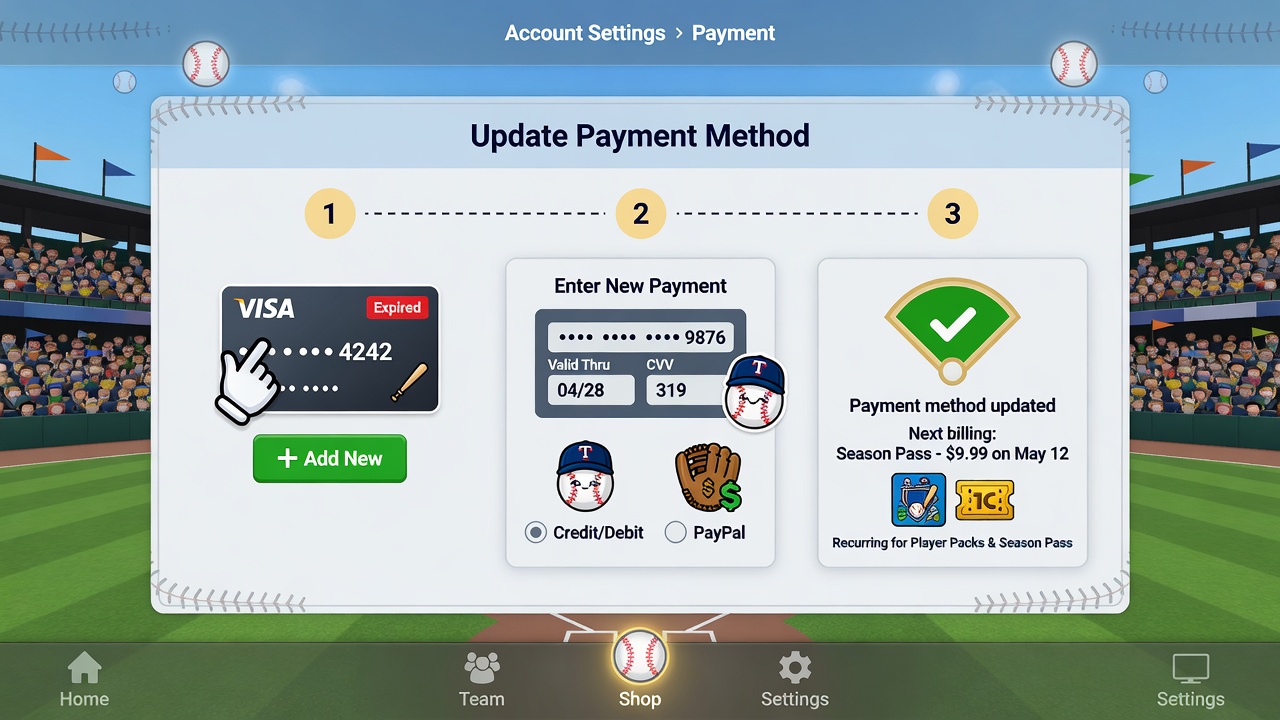
For any active subscriptions, such as a premium season pass or recurring resource bundles, updating your primary payment method will automatically apply to future billing cycles. It's a good practice to verify that the new payment method is correctly linked to your subscriptions after updating to avoid any failed transactions when your next billing date arrives. If you have multiple payment methods on file, you might also have the option to set a 'Default' payment method for all future transactions.
If you encounter any issues while updating your payment method, such as an error message during saving or if a new card isn't accepted, first double-check all entered details for accuracy. Ensure your card is active and has sufficient funds. Common issues include incorrect card numbers, expired cards, or regional restrictions. If the problem persists, try restarting the application or your device. For failed purchases or unrecognised charges, we recommend reviewing your transaction history within your account and contacting your bank or payment provider for clarification.
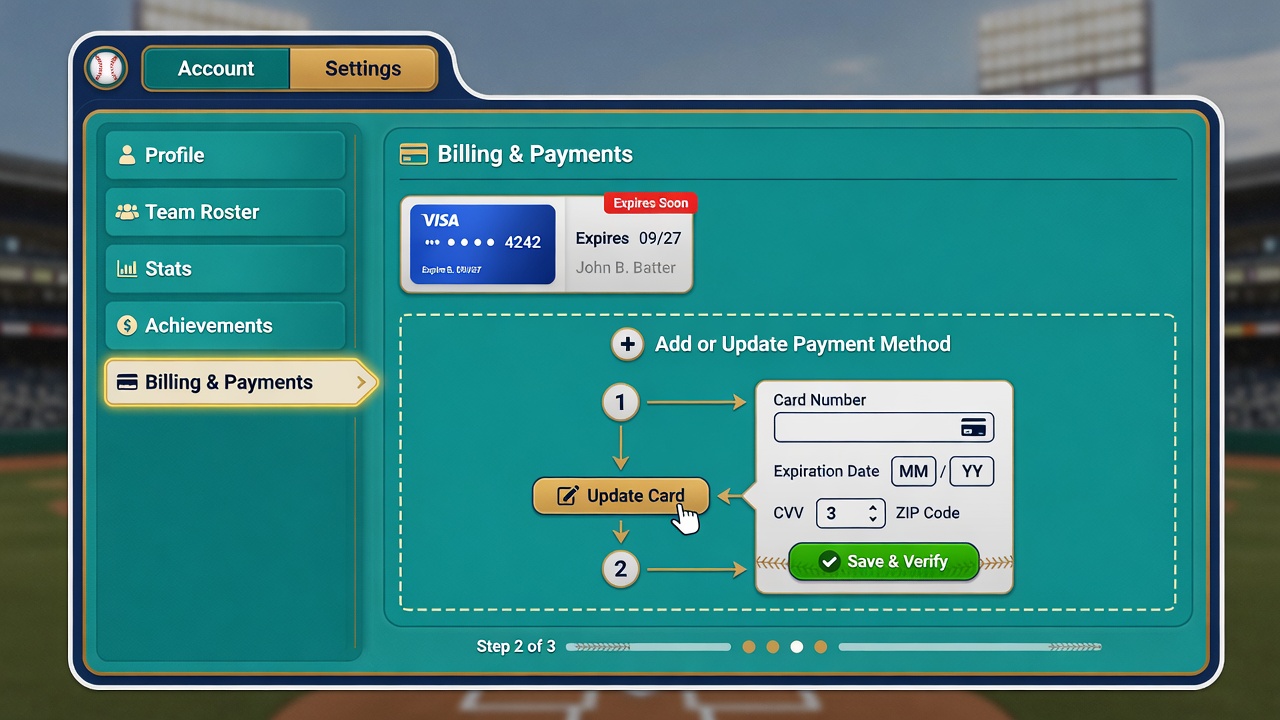
For billing disputes or if you need further assistance with your payment method that cannot be resolved through the in-game settings, please reach out to our dedicated support team. You can find our contact information in the 'Help' or 'Support' section of the game or on our official website. Provide as much detail as possible, including screenshots if applicable, to help us assist you efficiently and resolve any billing concerns promptly.
Reviews (2)
DiamondDust
This guide was super helpful! I read it on my phone between innings and quickly updated my payment method without any hassle.
DiamondDust_Dave
This guide on updating payment methods is super helpful! I was just wondering about how to manage my billing, and this cleared everything up. Definitely sharing this with my league mates who play Game of Innings!